 Independent information guide
How Mobile Web, App, and APK are Different
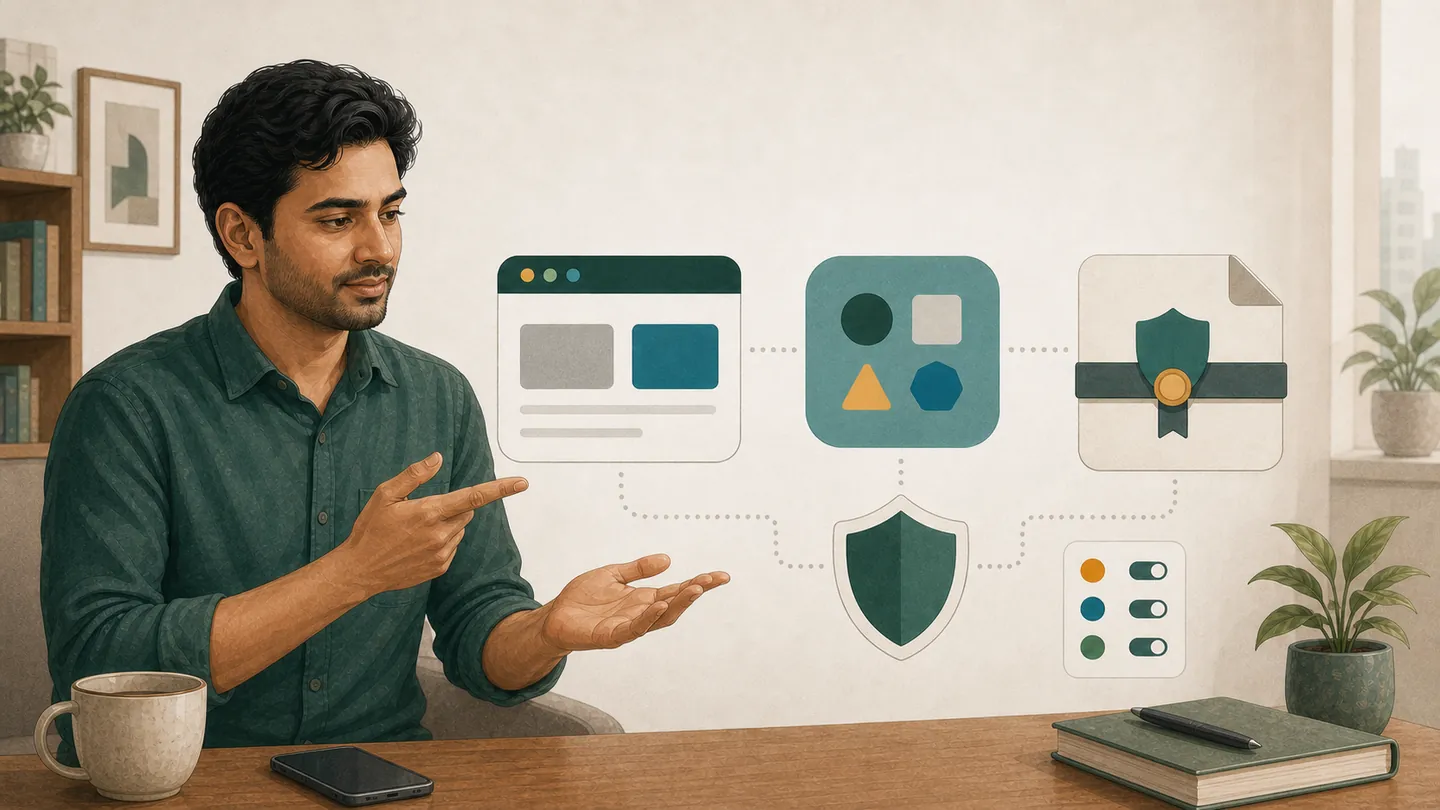
Mobile web runs in the browser's address bar; installed App is in the phone's application list; APK is the installation file for Android. iPhone or iPad does not install APK. A home-screen icon may sometimes just be a browser shortcut or PWA.
- Identify the web page by checking if the address bar is visible.
- Check the developer and package details in the app info of Phone settings.
- View the complete file extension in the download folder; avoid double extensions.
- “Stop if you see ”iOS APK" written, indicating a discrepancy.
Seeing APK in search results does not mean it is a brand file. An icon with the same name is also not proof of identity.
Security ChecklistVerify if the current App really exists
- Check if the brand spelling and file source are the same.
- Write down and compare the developer name, package identifier, and version date.
- Read the privacy description and permission list.
- Stop if the account page and store/file details conflict.
Inconsistent App with the same name, unknown developer, or different versions of the page and file are significant warnings.
Recognize Fake LinksEight Checks Before Installing APK
- Source: Note where the file came from.
- Name: View the complete filename and extension.
- Identity: Match package name and signature details, if the device shows them.
- Size: If there is no comparable information on the account page, do not consider the file size as proof of authenticity.
- Scan: Do not ignore Play Protect or system warnings.
- Permissions: Look for justification for SMS, contacts, accessibility, or device admin.
- Backup: Keep a backup of important data.
- Return Path: Know where to uninstall and revoke permissions.
Do not force if the installation stops
parse error, app not installed, signature mismatch or safety block may be due to OS version, storage, old package, corrupt file, or policy restriction. Specific Android version, file size, or compatibility is not confirmed here.
- Keep the original text of the error.
- Delete files from unknown sources and restore security settings to their previous state.
- Check for storage and system updates.
- See if there is an older App of the same package, but do not delete without understanding the data.
- If the source is not confirmed, do not look for a new copy.
If the text or button on the mobile page does not appear correctly
Font, zoom, cache, script, data saver, browser version or network layout may be disrupted. There is no need to install unknown apps just to solve display issues.
- Set the page zoom to 100% and check if font scaling is abnormal.
- Update the browser and switch Wi‑Fi/mobile data.
- Check extreme data saver and aggressive content blocker.
- Clear the cache of the current site only.
- View in both portrait and landscape; check if the bottom bar button is hiding.
If there is text overflow, captcha loss, endless loading, or the button goes below the footer, take a screenshot and follow the browser guide.
Login page issuesIf you see abnormal behavior after installation
- Turn on airplane mode or turn off the network.
- Keep evidence of abnormal screens without personal information.
- Revoke sensitive permissions and uninstall suspicious apps.
- Run a system scan and delete unknown downloaded files.
- Change reused passwords from a clean device.
- Check for unknown activity in the payment account.
A repeatable method for file verification
Each time you see new files or updates, do not copy previous decisions. Rewrite the source, filename, version date, package detail, signature, permissions, and scan results. A genuine-looking icon or the same color scheme is not proof of identity; clone files can also use familiar visuals.
Permission requests during installation and the first run may differ. If it shows fewer permissions initially and later asks for SMS, contacts, overlay, accessibility, or notification access, consider it a new request. Deny if there is no clear relation to work; uninstall if the app does not run until the source is independently verified.
If the phone is slow, check not only storage but also battery use, background data, unknown accessibility services, and device-admin list. If pop-ups persist after uninstallation, check browser notification permissions, downloaded files, and installed profiles. If alerts appear in the financial app, use that app's official protection flow.
An old app should not have another signature's package installed in the name of an update. Stop if there is a signature mismatch, protection bypass, or manual certificate installation request. If there is no verified information on the current account page, it is safer not to assume the safety of the file.
Removing the browser shortcut does not delete the account, and uninstalling the app does not close the server-side account. If account closure is needed, the actual alternative for the current account must be found. Do not assume closure just by deleting the icon.
Do not take Android version, iOS availability, update frequency, or file size from old articles. Only draw conclusions if the device's compatibility message and verified sources yield the same results. Avoid using sensitive credentials on devices where security support has ended.
Do not download files, log in, or make payments on public Wi‑Fi. If the browser grants notification permissions, fake update prompts may appear later; remove unknown permissions from the site notification list.
Even if updated files appear, read permissions again; permissions from the previous version do not automatically secure the new version. When files come from share, Bluetooth, or messaging apps, the original source is lost, so keep installation disabled. You can take a screenshot of device warnings, but crop if there are personal messages in notifications. Treat unknown profiles, VPNs, or certificates installed as separate security incidents.
Blocking pop-ups and keeping automatic downloads disabled on mobile browsers is helpful. When the page goes full-screen and hides the address bar, use the back gesture to see the complete domain. Apps and web shortcuts cannot be distinguished just by icon or color; use application info in settings.
Even if the device shows file hash or signature information, do not consider it final proof alone if there is no trusted value for comparison. If there is a source conflict, the safest next step is not to install.
If in doubt, not opening the file is an acceptable security decision.