 Independent information guide
Five levels of security checks
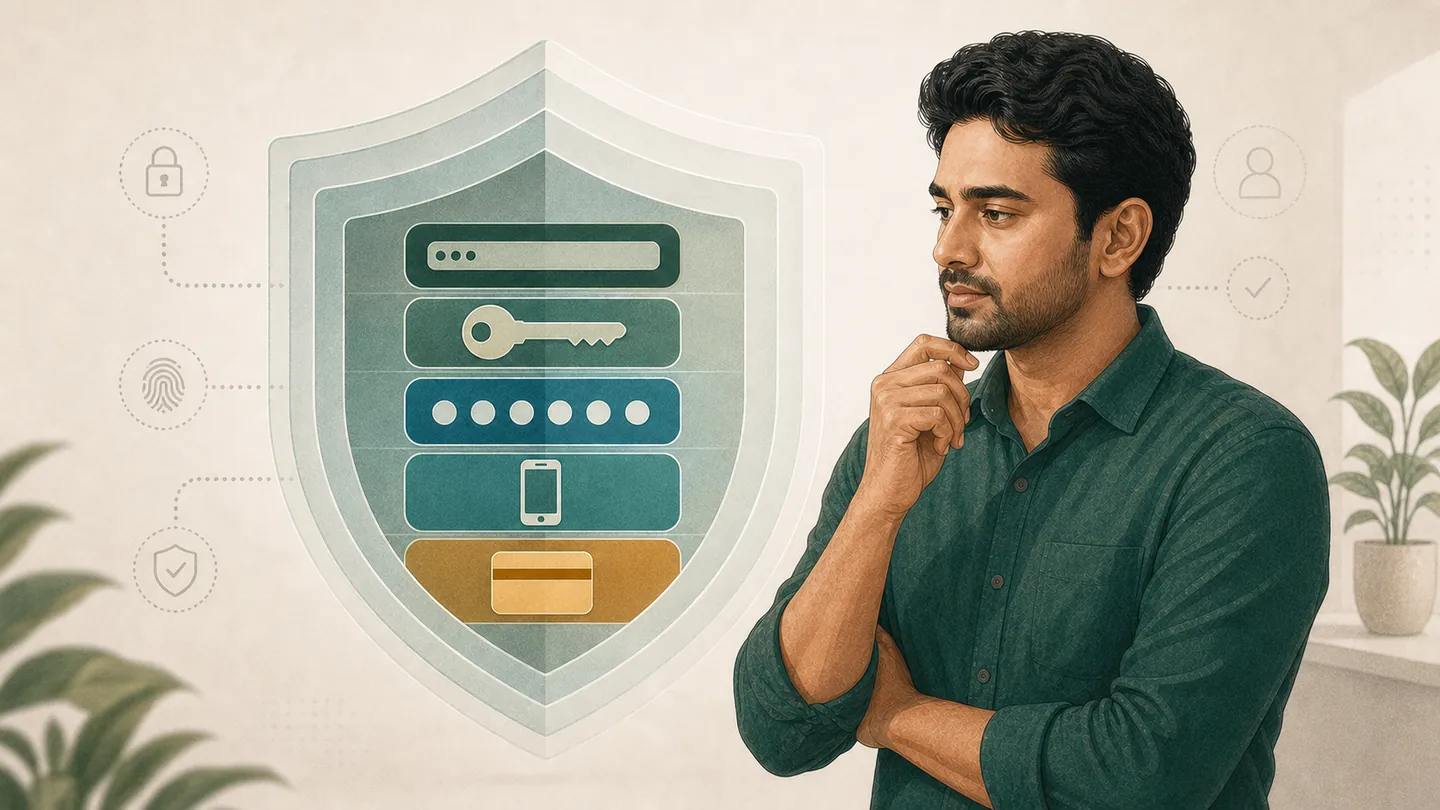
- Domain: Check the full spelling and redirect destination.
- Credential: Keep separate passwords and wallet PINs.
- OTP: Write it yourself, do not share with anyone.
- Device: Check for updates, lock, permissions, and unfamiliar files.
- Transaction request: Do not accept payment instructions outside the account page.
Note any anomalies at each level. If there is any suspicion at any one level, stop login, upload, or payment.
Follow the complete listVerify the identity of the domain and page
BD333 and BD33 or BD3333 are not the same spelling. Write the full domain by hand, check the destination again if redirected, and observe if the language/layout has suddenly changed. Be cautious of unusual bonus pressure, wallet PIN, or file download request identity alerts.
- Instead of the chat link, write down the known address by hand.
- Look for one character less/more, extra hyphen, or unusual ending.
- Do not open a short link without knowing the destination.
- Stop at browser red warnings or certificate errors.
Keep passwords separate
- Do not reuse login passwords on other sites.
- Keep transaction passwords and wallet PINs separate.
- Keep the lock on trusted devices enabled.
- Check auto-fill and saved passwords on shared phones.
- Keep recovery information safe and updated.
If there is a data leak on another site, accounts can be taken over with reused passwords. If reuse is detected, change all related passwords from a clean device.
Password reset stepsOTP is just for you
OTP is a one-time secret code; write it only on the main page where you requested it yourself. It is uncertain whether the platform uses OTP, but if someone asks for the code, stop the signal.
- Check if you had a request before the code arrives.
- Write only the latest code yourself.
- Do not send via screenshot, call, SMS reply, or chat.
- Do not allow remote assistance to view your screen.
- If an unrequested code arrives, check your password and session.
Check the permissions of the device and files
The risks of devices and files are part of account security. Keep the system and browser updated, delete unfamiliar files, and do not grant permissions for SMS, contacts, accessibility, or device-admin without clear reasons.
Urgent six steps if you see something suspicious
- Stop: Login, upload, stop file installation and payment.
- Disconnect: Close suspicious session; turn off the network if the device is compromised.
- Change password: Change reused credentials from clean device.
- View payment: Check the official records of your payment account.
- Keep evidence: Cover Full ID, PIN, OTP, and password while noting time, domain, and errors.
- Report correctly: Use the visible channel of the current account and your payment service provider.
Weekly security review
Review devices and accounts regularly, not just after an incident. Check browser updates, installed app list, downloaded files, accessibility service, notification access, and saved passwords. Before keeping a screenshot of unknown entries, cover personal information and then remove or revoke.
When receiving email or phone notifications, do not open the link in the message; go to the account via your known path. Match the date, device, and location of the alert with your activity. If you see a device list or logout-all option in the current account, read the instructions before using it; do not claim to stay if the option is not available.
Changing one credential may not eliminate all risks. Change the same password everywhere it has been used, check the payment account, and complete the device scan. If you have sent identity documents, note what and when you sent, and consider if local qualified help is needed.
Keep separate users, screen lock, and notification privacy on family devices. Even if browser profiles are separate, everyone can see downloaded files; regularly check the download folder and saved credentials.
Phishing pages can copy familiar language, color, and navigation. Look for full domain and request behavior, not just visual similarity. If urgent countdown, reward pressure, credential re-entry, and sudden downloads occur together, the risk is higher.
Uninstalling just the app may not be enough if the device is suspected of compromise. Revoke permissions, perform system scans, clean up notifications, review payments, and change passwords from a clean device together.
If using a password manager, keep the master password unique and update recovery methods. If the browser wants to save passwords, say “no” on shared devices. Passwords copied to the clipboard can be read by other apps, so clear the clipboard after pasting if the device offers that option.
If security notification options are visible, check if the destination is yours before enabling unknown logins, password changes, and payment alerts. If you did not request a change of email or phone, stop account activity. Do not log in via any notification link; take a known route.
In the incident note, write “what was seen, when, on which device, what action was stopped.” Keep assumptions and confirmed events separate. This ensures no steps are missed in subsequent password changes, scans, and payment reviews.
After recovery, check if the phone and email destination are still yours. If there are unknown changes, do not start a new session; update the incident note and check the payment records.